
Table of Contents
- Why Mobile Speed Matters for Shopify Stores
- Step 1: Audit Your Current Mobile Performance
- Step 2: Reduce Shopify Image Size and Optimize Media Assets
- Step 3: Evaluate the Impact of Third-Party Scripts on Shopify Speed
- Step 4: Implement Shopify Speed Optimization Apps and Tools
- Step 5: Minify CSS, JavaScript, and Reduce HTTP Requests
- Step 6: Enable Browser Caching and Use a Content Delivery Network
- Step 7: Monitor Core Web Vitals and Conversion Rate Impact
- Frequently Asked Questions
Last Updated: September 30, 2026
Why Mobile Speed Matters for Shopify Stores
Mobile shoppers expect fast load times. A slow site costs you sales. When mobile pages take more than three seconds to load, visitors bounce. That's not theory, it's how mobile browsers work.
Your Shopify store's mobile speed directly affects conversion rates. Faster pages mean more purchases. Slower pages mean abandoned carts. The difference between a fast store and a slow one often comes down to one thing: how well you've optimized for mobile performance.
The stores that improve Shopify mobile load speed see measurable gains in both traffic and revenue. Mobile-first optimization isn't optional anymore, it's essential.
Here's what matters most: mobile devices face real constraints. Network speeds vary. Processing power is limited. Battery drain is a concern. These constraints mean mobile optimization requires a different approach than desktop optimization. A technique that works on desktop might fail on mobile.
This guide covers seven concrete steps to improve Shopify mobile load speed. You'll learn how to audit your current performance, optimize images, evaluate third-party scripts, and implement caching strategies. Each step builds on the last. By the end, you'll have a clear roadmap for faster mobile performance.
Step 1: Audit Your Current Mobile Performance
Start by measuring your actual mobile performance. You can't improve what you don't measure. Use real tools to test real conditions.
Test with Mobile Emulation and Network Throttling
Mobile emulation simulates how your store loads on actual phones. But emulation alone isn't enough. You also need network throttling. This simulates slow mobile networks. Most mobile users don't have fast connections.
Open your Shopify store in Chrome or Firefox. Right-click and select "Inspect." Go to the Network tab. Find the throttling dropdown. Select "Slow 4G" or "Fast 3G." Now reload your store. This simulates real mobile conditions.
Watch what loads first. Notice which elements block the page. Pay attention to how long Core Web Vitals take:
- Largest Contentful Paint (LCP): Time until the biggest content element appears
- Cumulative Layout Shift (CLS): How much the page jumps around while loading
- Interaction to Next Paint (INP): Time between user action and visual response
These metrics matter. Google uses them for ranking. Users notice them immediately.
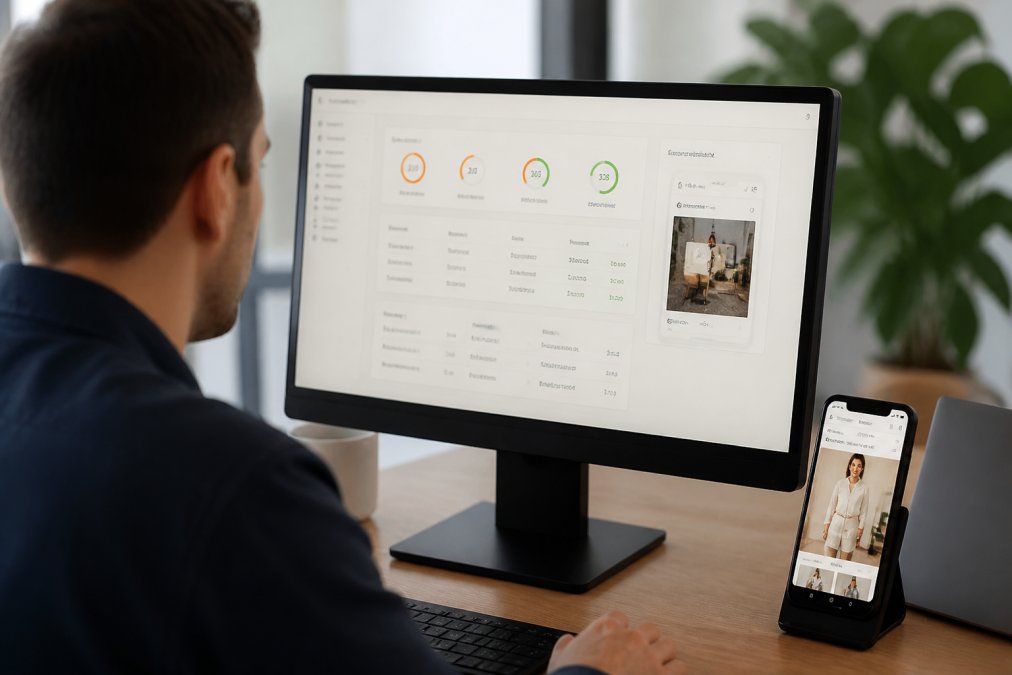
Next, use Google's Page Speed Insights tool. Enter your Shopify store URL. It analyzes mobile performance automatically. The tool shows your Lighthouse score and specific issues. Screenshots highlight what's slow.
Look for these red flags in the report:
- Render-blocking resources (CSS or JavaScript that delays page load)
- Unoptimized images (files larger than necessary)
- Third-party scripts (analytics, chat, reviews tools)
- Missing lazy loading (images loading before they're visible)
- No browser caching enabled
Take screenshots of your baseline scores. You'll use these later to measure improvement.
Step 2: Reduce Shopify Image Size and Optimize Media Assets
Images are usually the largest files on your store. Large images slow down mobile load speed. Smaller images load faster. This is where most stores find the biggest wins.
Use WebP Format and Lazy Loading
Start with image format. JPG and PNG files are larger than WebP. WebP is a modern format that compresses images better. Most mobile browsers support it now.
Shopify's built-in image optimization helps. But you can do better. Use a tool to convert images to WebP before uploading. This reduces file size by 25-35% without quality loss.
Next, implement lazy loading. This loads images only when users scroll near them. Images below the fold don't load until needed. This cuts initial page load time significantly.
Shopify handles lazy loading automatically for product images. But you need to check custom images in your theme. Look for images in your theme code. Add loading="lazy" to each image tag.
Here's what to do:
- Audit all images in your Shopify store
- Resize images to actual display size (don't upload 4000px images for 400px displays)
- Convert to WebP format where possible
- Add lazy loading to images below the fold
- Compress images using tools like TinyPNG or ImageOptim
- Use responsive images that scale for different screen sizes
For product photos, Shopify handles optimization. But hero images, banners, and custom images often aren't optimized. These are your biggest opportunities.
Mobile users have smaller screens. A 2000px wide image wastes bandwidth on a 400px mobile screen. Resize before uploading. Shopify will create smaller versions automatically, but starting with the right size matters.
Step 3: Evaluate the Impact of Third-Party Scripts on Shopify Speed
Third-party scripts are code from external services. Analytics, chat widgets, review apps, and marketing pixels all add scripts to your store. Each script adds weight. Each one slows down mobile load time.
Remove Unnecessary Apps and Cleanup Leftover Code
Start by auditing your installed apps. Open your Shopify admin. Go to Apps and Sales Channels. Write down every app you have.
Now ask yourself: do you actually use this app? Many stores install apps and forget about them. These apps keep running. They keep loading scripts. They keep slowing your store.
Remove apps you don't use. This is the fastest way to improve Shopify mobile load speed. Uninstalling an app removes its scripts immediately.
But here's the problem: sometimes uninstalling doesn't fully clean up. Old code stays behind. This leftover code still loads. You need to manually remove it.
Check your theme code for leftover scripts. Go to Online Store → Themes → Actions → Edit Code. Search for script tags from apps you removed. Delete them.
Common leftover code:
- Google Analytics tracking pixels
- Facebook Pixel code
- Intercom chat widget
- Gorgias chat widget
- Yotpo review scripts
- Loox social proof code
Each one adds latency. Mobile browsers notice this. Users notice the slow load.
Test which apps actually impact speed. Use Chrome DevTools. In the Network tab, look at which domains load. Third-party domains (anything not your Shopify store) are likely apps.
Compare load times before and after removing each app. Some apps barely impact speed. Others cut load time in half. Prioritize removing the slow ones.
Step 4: Implement Shopify Speed Optimization Apps and Tools
Some apps actually improve mobile speed. These are different from the slow apps you just removed. Speed optimization apps compress files, manage caching, and optimize code.
Popular options include tools that minify CSS and JavaScript, optimize images automatically, and implement lazy loading across your entire store.
Look for apps that handle:
- Automatic image optimization and WebP conversion
- CSS and JavaScript minification
- Lazy loading implementation
- Browser caching management
- Critical CSS extraction
Step 5: Minify CSS, JavaScript, and Reduce HTTP Requests
Minification removes unnecessary characters from code. It shrinks file sizes. Smaller files load faster on mobile networks.
Reduce requests by:
- Combining multiple CSS files into one
- Combining multiple JavaScript files into one
- Using CSS instead of images where possible
- Removing unused CSS (critical CSS extraction)
- Deferring JavaScript that isn't needed immediately
Step 6: Enable Browser Caching and Use a Content Delivery Network
Browser caching stores files locally on the user's device. Return visitors load faster because files are already there. You don't need to download them again.
Step 7: Monitor Core Web Vitals and Conversion Rate Impact
Optimization doesn't end after one round. Mobile performance requires ongoing monitoring. Track your Core Web Vitals weekly.
Frequently Asked Questions
How much can you realistically improve Shopify mobile load speed?
Load time improvements depend on your starting point and which optimizations you implement. Removing unnecessary apps and minifying assets typically cuts page weight by 20-40%. Combined with image compression, lazy loading, and browser caching, stores often see Largest Contentful Paint (LCP) improvements of 30-50%. The exact gains vary by theme architecture, product count, and third-party script volume. Test your current performance using mobile emulation and network throttling to establish your baseline.
Does mobile speed actually impact conversion rates on Shopify?
Yes. Mobile-first indexing means Google prioritizes mobile performance in rankings, but the conversion impact is direct: slower mobile experiences increase bounce rates and reduce purchase completion. Sites with poor Core Web Vitals scores, particularly high Cumulative Layout Shift and slow Interaction to Next Paint, see measurable conversion drops. The relationship is strongest in mobile commerce, where network latency and device constraints are real constraints. Improving mobile load speed is both an SEO and CRO priority.
What's the fastest way to improve mobile speed if I don't have a developer?
Start with image optimization and app cleanup. Reduce Shopify image size by converting to WebP format and compressing product photos. Audit your installed apps, each one adds HTTP requests and render-blocking resources. Remove unused apps and any leftover code from deactivated integrations. Enable lazy loading and browser caching (most Shopify themes support this natively). These steps require minimal technical knowledge and often yield 20-30% speed gains. For deeper optimization like minifying CSS or implementing a Content Delivery Network, consider Shopify speed optimization apps that automate these tasks.
How do I test mobile speed improvements accurately?
Use mobile emulation and network throttling in your browser's developer tools to simulate real-world conditions. Test on 4G network profiles to reflect typical mobile user experience. Use Lighthouse or Google PageSpeed Insights to measure Largest Contentful Paint, Cumulative Layout Shift, and Interaction to Next Paint. Run tests multiple times, results vary based on server response time and asset delivery. Compare before-and-after metrics on the same pages to isolate the impact of each optimization. Avoid testing on desktop networks, which don't reflect actual mobile latency.